No audible tuning
Check sidechain routing, activation, ACTIVE, Pitch Amount and Tune Coverage. Follow needs a usable reference; offset alone is not standalone transposition. If LIMIT appears, reduce the offset. Pitch controls →
Keep the kick you chose.
Let it find the bass.
User manual · Musical Creation

Complete sidechain-driven tuning in Lite. Pro adds three dedicated modules for shaping the kick’s tone and envelope.
| Features | Lite | Pro |
|---|---|---|
| Sidechain-driven pitch tuningTune Coverage, pitch wheel and Follow/Freeze | Included | Included |
| Sub RetainCompensates for low-end loss during upward pitch shifts | Included | Included |
| Global Gain Match, Peak Guard and Undo/Redo | Included | Included |
| Adaptive EQFollows the kick’s tuned pitch | Not included | Included |
| Four-point EnvelopeShapes attack, body and tail, adapting to each kick’s timing | Not included | Included |
| SaturationAdds harmonics to the whole kick or only its tuned portion | Not included | Included |
Both tiers use the same tuning engine and sound quality. Tuning includes Amount, pitch hints and analyzer readouts; Sub Retain includes all advanced controls.
The planned Lite interface places a quiet UNLOCK PRO ↗ link below the logo. It opens the Pro feature comparison and upgrade options. Pro displays a plain PRO VERSION label there instead. The planned unlock keeps your settings and sound unchanged until you enable additional processing.
Planned tiers: the current build is Pro. Lite licensing and in-place unlocking are not implemented yet.
Version 0.1.0 · Pro development edition
Click a chapter title to jump to it in the PDF.
Insert on the kick track, then send the bass to the external sidechain.
Open the header key and enter your email and serial.
Select it as the plugin’s external sidechain. If the DAW has a sidechain Mix control, normally set it to 100% external. The bass is analysed, never mixed into the output.
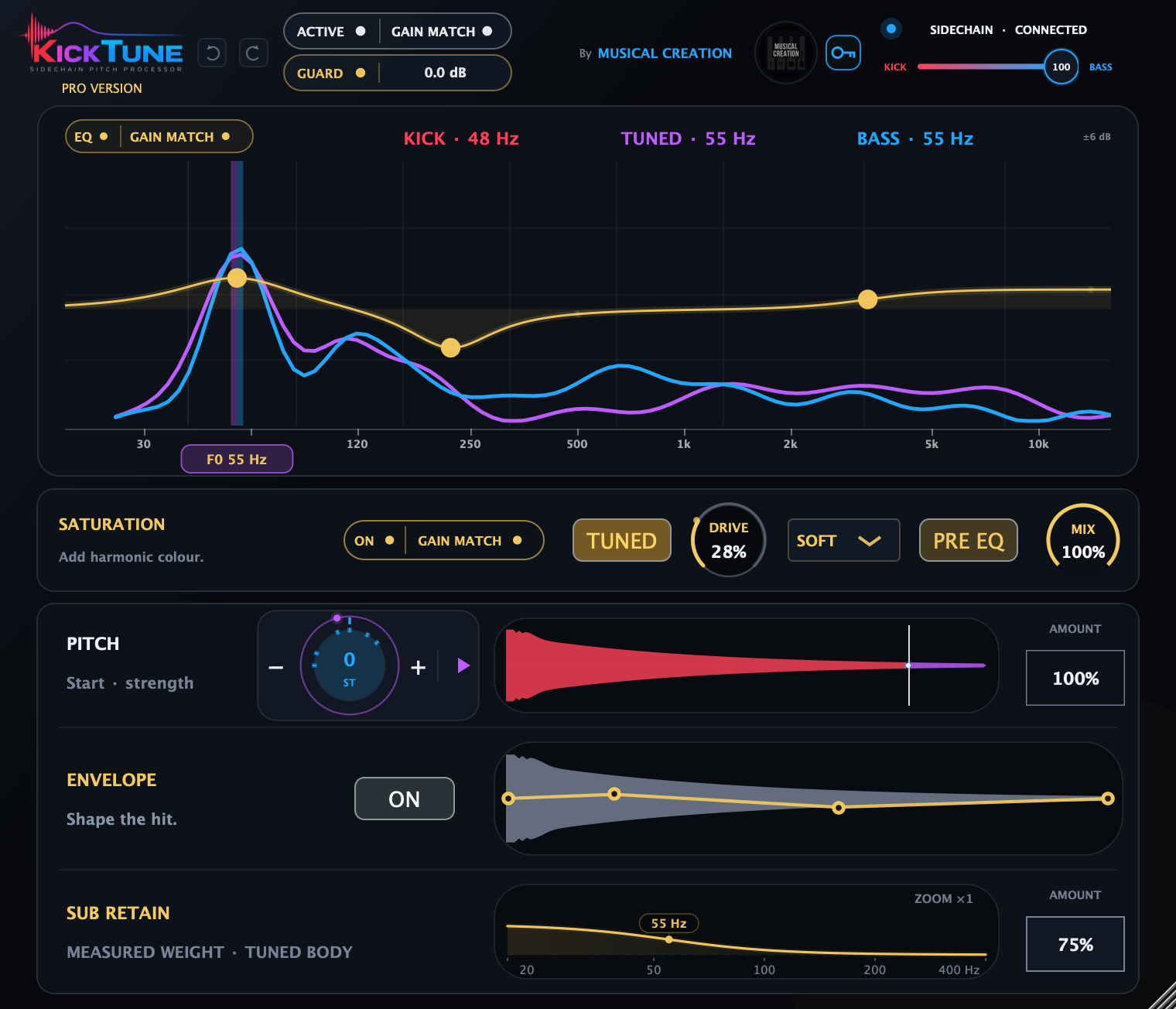
Check the sidechain status and KICK, TUNED and BASS frequency readouts.
Start with Follow, 0 st and 100% Pitch Amount. Drag the white seam to choose where tuning begins. Add an interval or Freeze the target if needed.
Use Sub Retain for lost low-end weight. Pro also offers EQ, saturation and envelope shaping. Compare with ACTIVE/BYPASSED and GAIN MATCH; leave GUARD on.
| Display | Meaning |
|---|---|
| Red / purple kick | Red shows the protected portion; purple marks the tuned body. A matching target can turn purple without needing a pitch shift. |
| Blue curve / amber curve | Blue shows bass evidence; amber shows the EQ response. |
| White seam | The Tune Coverage boundary in the PITCH waveform. |
| HOLD / HELD | HOLD briefly reuses a recent bass reference. HELD keeps the analyzer visible while playback is stopped. Neither selects pitch Freeze. |
The lower waveforms show the source hit, with controls overlaid. Click manual images to enlarge them. Resize the plugin from its lower-right corner; click the company logo for About.
The header KICK↔BASS control chooses the tuning reference. 100% BASS follows the sidechain; 0% KICK uses the kick itself. Intermediate settings can suggest different targets. This changes the reference, not correction strength or audible bass level. Double-click restores 100% BASS.
Choose when tuning starts, how far it moves and which pitch it follows.
Drag the white seam right to protect more of the onset, or left to tune more of the hit. Right-click the waveform to enter a coverage percentage. 0% protects the whole hit from pitch processing; 100% gives maximum coverage while retaining the built-in onset protection.
Pitch AMOUNT controls correction strength: 0% keeps original pitch; 100% requests the target plus your offset in Follow. Drag or type a value; double-click restores 100%. Other enabled shaping can remain audible at zero Amount or coverage.
The triangle means Follow: each kick follows a usable bass reference. Click it to capture the currently corrected pitch. The pause icon means Freeze: subsequent kicks keep that target even as the bass changes. Click again to resume Follow.
Freeze needs a valid target, some tuned coverage and active processing. It remembers the applied pitch and current Amount; keeping Amount unchanged holds that destination. Changing Amount adjusts correction strength relative to the capture.
The wheel offsets the target by −12 to +12 semitones. Drag vertically or use −/+; +7 st is a fifth up. Both modes remain adjustable. In Freeze, moving from the captured +3 st to +5 st raises the captured target by two semitones.
Double-click the centre or inner ring to reset only the offset. Pitch edits apply to subsequent hits; they do not retune a tail already sounding.
Pointer and number: your chosen semitone offset.
Inner blue marks: recently heard bass pitches. The pointer turns blue near a match. Hints are temporary and do not snap the pitch.
Moving outer dot: the applied target; purple in Follow, amber in Freeze. It shows target pitch, independently of your offset pointer.
Shape the tone with filters that follow the kick’s tuned pitch.
Hover empty graph space to reveal a +, then click to add a filter. Up to eight filters are available. Choose Bell, Low Shelf, High Shelf, High-pass or Low-pass from the selected node’s card or right-click menu.
Bell and shelf gain spans −48 to +48 dB. Pass filters offer 12 or 24 dB/octave slopes. Frequency spans 18 Hz–16 kHz, subject to sample rate; Q spans 0.38–2.5.
The filters follow the tuned pitch and keep their last position when no new target is available. You can still edit them during playback or over a HELD analyzer. Hover a node to bring back its detail card.
Add harmonics to the whole kick or only its tuned portion.
| Control | Use |
|---|---|
| ON / OFF | Bypass saturation while retaining its settings. |
| DRIVE | Set intensity from 0–100%. At 0%, saturation is neutral. |
| WHOLE / TUNED | Process the whole kick, or add harmonics only to its tuned portion. |
| SOFT / WARM / HARD | Choose rounded, warm or sharper distortion. Open the dropdown, or right-click Drive. |
| MIX | Blend the saturation effect from none at 0% to full at 100%. |
| GAIN MATCH | Compare with and without saturation at a matched level. |
| PRE EQ / POST EQ | PRE EQ puts saturation before EQ, so EQ shapes its result. POST EQ puts it after EQ, so EQ shapes what drives the distortion. |
Drag Drive or Mix vertically. Their readouts show whole percentages; fine adjustments are retained. Double-click Drive to reset to 0%, or Mix to reset to 100%.
Shape attack, body and tail, adapting to each kick’s timing.
Drag points horizontally for timing and vertically for level, from mute to +12 dB. A flat 0 dB curve leaves the level unchanged.
The envelope shapes the whole kick, including when pitch correction is inactive. Your gain shape adapts to each hit’s timing; edits take effect on subsequent hits, leaving the current tail unchanged.
The waveform shows the source hit; the amber line shows your gain shape. Use the main analyzer and your ears to judge the result.
Compensate for low-end loss during upward pitch shifts.
Raise AMOUNT to recover more of the lost weight. At 100%, Sub Retain requests the full available recovery within its boost limit. It applies only when upward tuning causes a measurable loss; it does not force a constant bass boost.
Right-click the graph. Drag a value up/right to increase it or down/left to decrease it. Double-click resets that value; click outside or press Escape to close.
| Control | Range / default | Use |
|---|---|---|
| Detect Hz | 60–100 Hz / 60 Hz | Choose the low-frequency region used to assess weight loss. |
| Max Boost | +3–12 dB / +3 dB | Limit the maximum recovery boost. |
| Q | 0.45–1.40 / 0.72 | Adjust the recovery shelf’s broadness. |
The frequency badge follows the applied target. ZOOM changes the display magnification, not the boost. All Sub Retain controls belong to both planned tiers.
Compare levels and keep control of added peaks.
ACTIVE/BYPASSED switches the complete effect. The header GAIN MATCH makes the overall comparison; EQ and saturation have their own local matching controls.
A filled dot means enabled, a hollow/dim dot means disabled, and a pulsing dot means learning. Allow a few usable kicks to settle before comparing. New instances start all three matchers On.
With global matching On, the bypassed original may be attenuated to match the processed result. With it Off, internal bypass returns the original at its unprocessed level. Later processing and Guard can affect the final level after a local match.
GUARD reduces peaks added by processing. 0.0 dB means no reduction; the readout shows attenuation when needed. Click to toggle it. Right-click and choose Reset learned reduction to clear the held value.
Guard is not intended to repair an already-clipping source or replace a mastering limiter.
Use the header arrows or ⌘ + Z / ⌘ + Shift + Z. Undo covers control edits, survives closing the editor, and clears when a project state is loaded. It is not saved as project history.
Manage your license from the header key.
The blue By Musical Creation credit opens the company website. Click the separate Musical Creation company logo to open About. It shows the Pro edition, version and license status. Open user manual opens this bundled guide offline; Visit website opens Musical Creation. Manage license opens the same panel as the header key. PRO VERSION sits below the logo; Undo and Redo sit to the right, vertically centered with the logo.
Enter your email and serial to activate. The panel shows license status and computer capacity. Use Deactivate this computer before moving an activation. Offline use is available only while your cached authorization remains valid; use Refresh when the panel offers it if verification needs retrying.
Your project saves control settings, including the frozen pitch target. Saved values take precedence over new-instance defaults. Temporary pitch hints and Undo history are not saved; Gain Match may need to settle again after reopening.
Only Transient Preserve and Tame Tune have host automation. Preserve uses the inverse coverage value: Tune Coverage = 100 − Transient Preserve. For example, 70% Preserve means 30% coverage. Other settings save with the project but have no automation lanes.
This manual covers Pro development version 0.1.0. Current Mac development builds include AU, VST3 and AAX for Apple Silicon and Intel; host qualification is ongoing. Windows x64 VST3 is planned.
The Lite/Pro comparison describes the agreed future tiers. Lite licensing and in-place unlocking are not implemented yet.
Defaults apply to new instances; saved projects keep their settings.
| Control | Default |
|---|---|
| TAME TUNE | 100% BASS |
| Tune Coverage | 30% visible (70% host Transient Preserve) |
| Pitch mode / offset / Amount | Follow / 0 st / 100% |
| EQ / local Gain Match | Enabled, no nodes / On |
| Saturation On / Drive / scope | On / 0% / TUNED |
| Character / Mix / order / Gain Match | SOFT / 100% / PRE EQ / On |
| Envelope | On; four points at 0 dB |
| Sub Retain Amount | 0% |
| Detect Hz / Max Boost / Q | 60 Hz / +3 dB / 0.72 |
| Global state / Gain Match | Active / On |
| GUARD | On; 0.0 dB before learning |
| Action | Gesture |
|---|---|
| Fine pitch / envelope edit | Shift while dragging; Shift + arrows where supported |
| Reset pitch offset | Double-click centre/inner ring, or Home |
| Follow / Freeze | Triangle/pause control, or Space with wheel focus |
| Numeric coverage | Right-click PITCH waveform, enter value, press Enter |
| Fine EQ / saturation edit | ⌘ while dragging; ⌘ + scroll for fine EQ Q |
| Delete EQ node | Option-click or double-click the node |
| Bypass EQ node | Option + Shift-click |
| Toggle whole EQ with focus | ⌘ + Option + Shift + B |
| Reset envelope point | Option-click: gain only; double-click: gain and time |
| Sub Retain advanced | Right-click graph; Shift or ⌘ for fine value edits |
| Reset Guard learning | Right-click GUARD → Reset learned reduction |
| Undo / Redo | ⌘ + Z / ⌘ + Shift + Z |
Context menus and on-screen controls provide alternatives where a DAW intercepts keyboard shortcuts.
Check the controls below before changing your sound.
Check sidechain routing, activation, ACTIVE, Pitch Amount and Tune Coverage. Follow needs a usable reference; offset alone is not standalone transposition. If LIMIT appears, reduce the offset. Pitch controls →
Play a measurable kick with a usable target, active processing and some tuned coverage. Capture after the corrected pitch is audible. Changes apply to subsequent hits. Follow and Freeze →
It only recovers low-end weight lost through upward tuning. A flat graph at 100% can be correct. Sub Retain →
Check ON/OFF, Drive and Mix. TUNED needs an audible tuned portion; try WHOLE to include the original kick. Saturation →
Check Guard’s reduction and allow Gain Match to settle. Global matching can also attenuate the bypassed original. Matching and Guard →
Check the license panel, host/plugin bypass and sidechain routing. The current Demo option does not authorize processing. Activation →